API keys, webhooks and embeds
There are three ways to connect Stagewerk to your own website or systems. Pick the lightest one that does the job.
| You want to | Use |
|---|---|
| Show your events, entry list or standings on your website with no code | Widgets. See Put your events on your own website. |
| Have your own system read your public event data | An API key (below) |
| Have your own system told the moment something happens | A webhook (below) |
API keys and webhooks are for owners. If "API keys" and "Webhooks" are not in your sidebar, ask an owner. See Members and roles. You may be asked for your password when you create or revoke a key.
Create an API key
A key lets your system read this organisation's public event data. It is read only.
- Choose "API keys" in the sidebar.
- Under "Create a key", enter a "Name (what will use this key)", such as the website that will use it.
- Choose "Create key".
- Copy the key straight away. The page says "Copy it now: it will not be shown again."
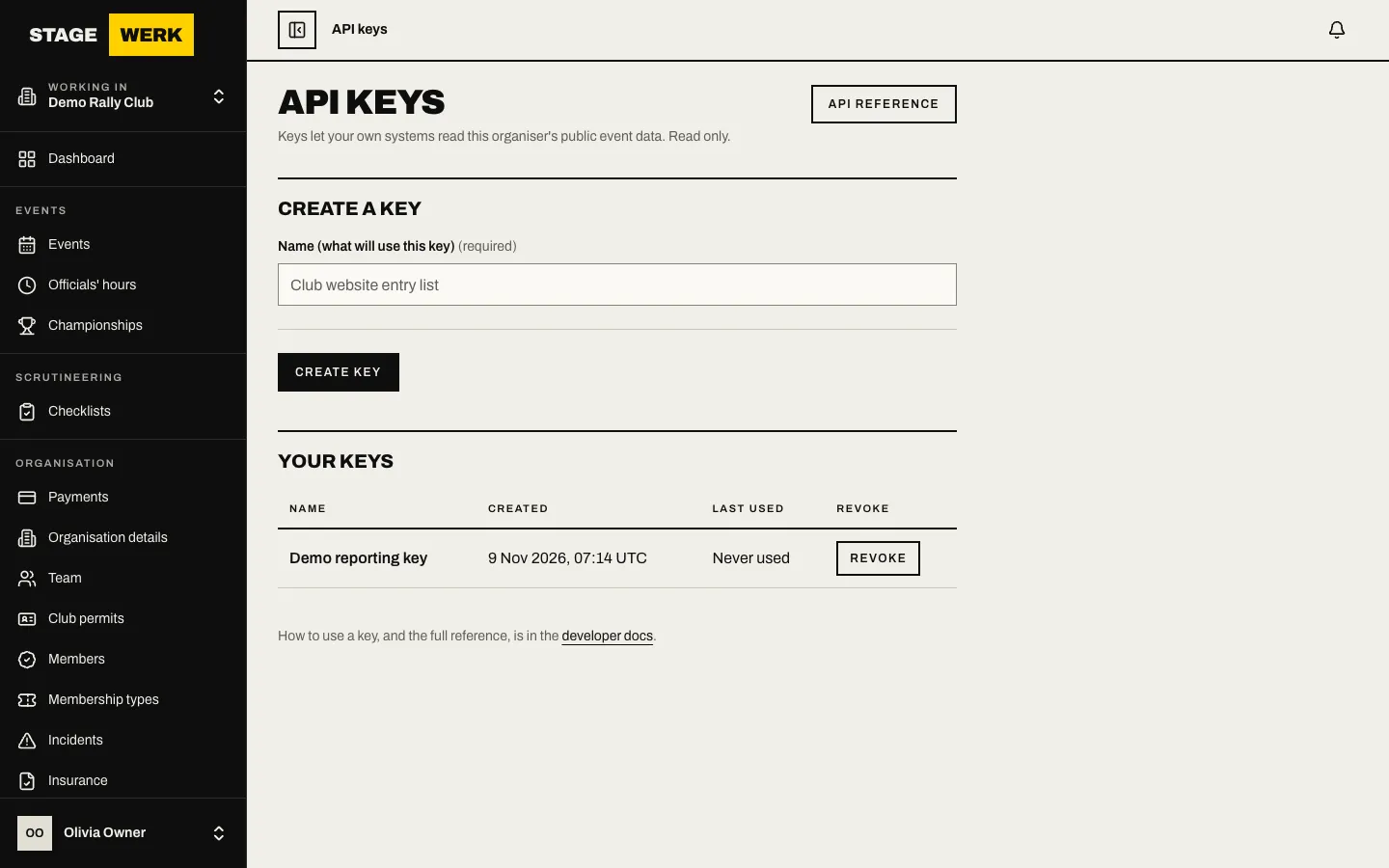
Your keys are listed under "Your keys" with when each was created and last used. Use one key per system, so you can revoke one without breaking the others.
To stop a key working, choose "Revoke" and confirm "Revoke key". Anything using it stops working immediately.
The "API reference" link, also at /developers, lists every request your key can make, with a changelog of changes.
Add a webhook
A webhook sends an event to your own system when something happens: an entry is accepted or withdrawn, results are published, or your team changes. Each request is signed so your system can check it came from Stagewerk.
- Choose "Webhooks" in the sidebar.
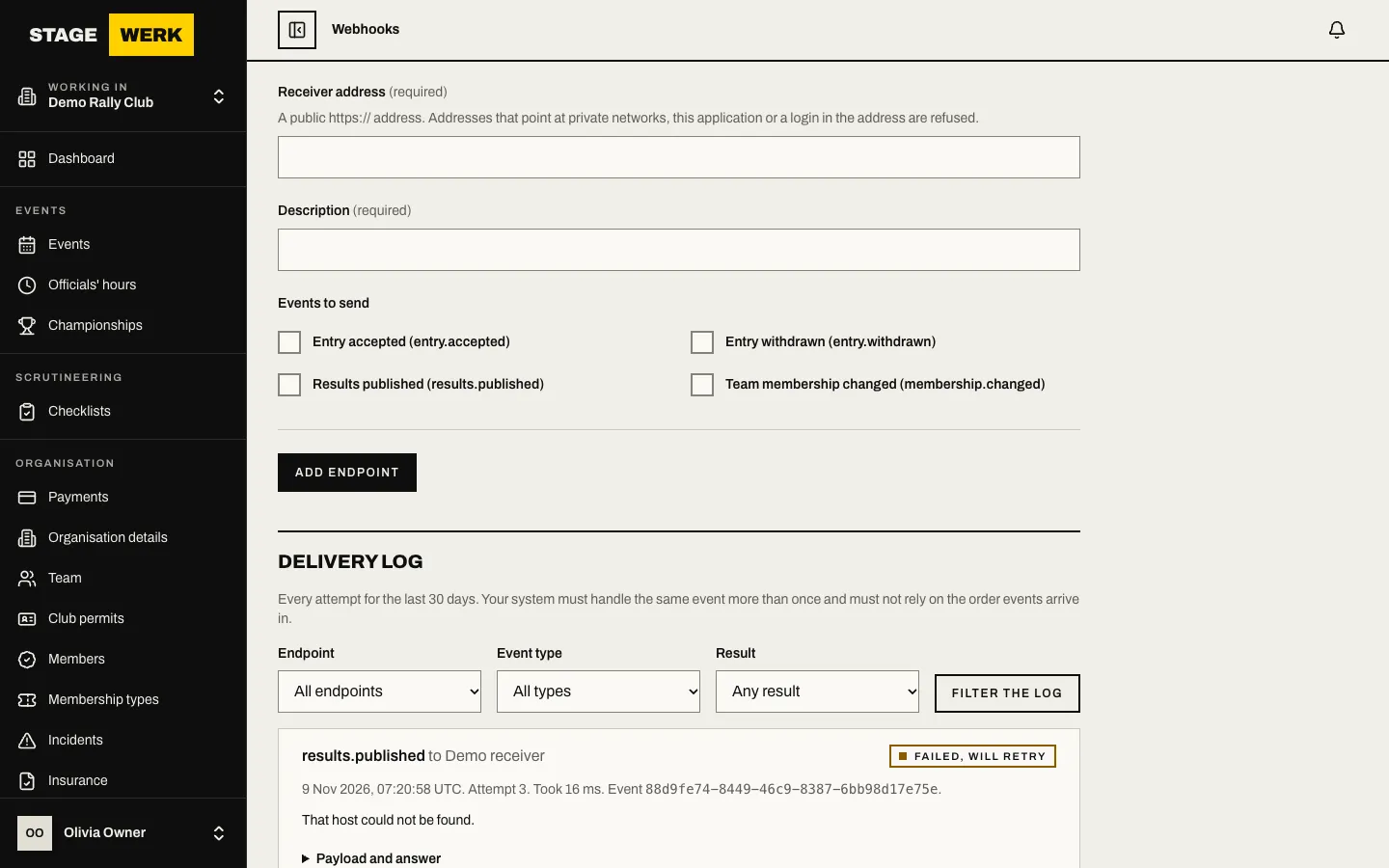
- Under "Add an endpoint", enter the "Receiver address". It must be a public https:// address. Addresses that point at private networks, at Stagewerk itself, or that hold a login are refused.
- Add a "Description" so you can tell it apart.
- Under "Events to send", tick the events you want: "Entry accepted", "Entry withdrawn", "Results published" and "Team membership changed".
- Choose "Add endpoint".
- Copy the "Signing secret" shown at the top. It is shown once. If you lose it, use "Rotate secret" to get a new one; the old secret keeps signing for a short while so you can switch over.
Requests carry a Stagewerk-Signature header. Check it with your signing secret before you trust the body. The "API reference" page explains the format.
Test and watch a webhook
- On the endpoint, choose "Send test event". It sends a "Test event" to your address.
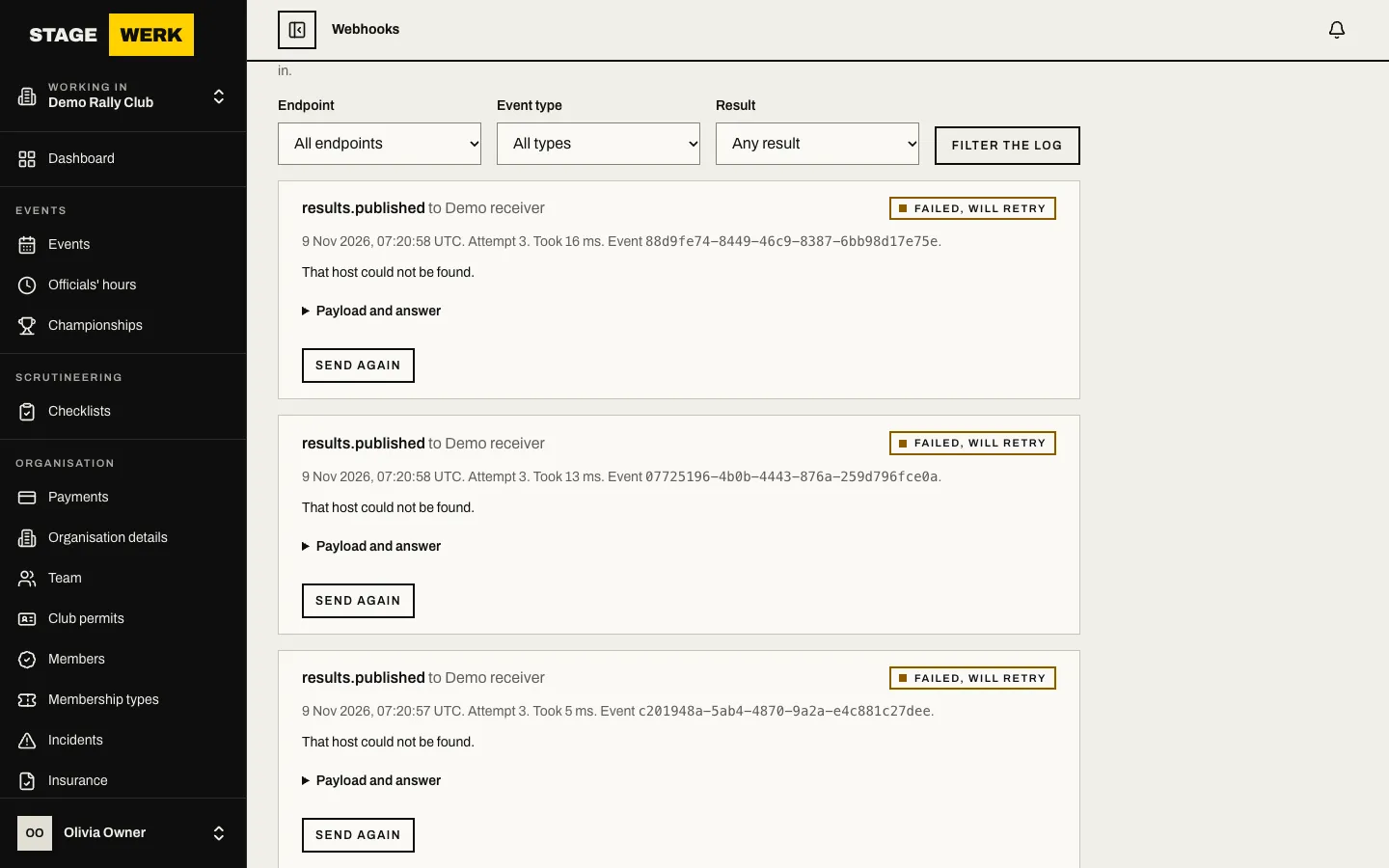
- Open the "Delivery log" to see each attempt and whether it worked.
- If your receiver keeps failing, the endpoint pauses itself after repeated failures and its status shows it. Fix your receiver, then choose "Resume". Choose "Pause" to stop it yourself.
- "Edit" changes the address or the events. "Delete" removes the endpoint.
You can have up to 10 endpoints.
Embed widgets
Widgets need no key. Open "Widgets" in the sidebar, copy the "Script tag" or "Iframe" code and paste it into your site. The full steps, including the calendar feed, are in Put your events on your own website.
If something goes wrong
- Your system gets an authorisation error. The key was revoked or copied wrongly. Create a new one.
- The entry list endpoint returns "not found". Publish the entry list for that event on the Widgets page first.
- The webhook never arrives. Check the "Delivery log" for the reason, and check the endpoint is not paused.
https://develop.stagewerk.com/help