Complete your self-scrutiny form
Some events ask you to check your own car against a checklist before you sign. If your event has one, it appears on your entry. If it does not, the page says "This event has no self-scrutiny checklist. You sign the declaration as usual."
Open the checklist
- Open "My entries" and choose your entry.
- In the to-do list on the entry find "Self-scrutiny checklist" and choose "Complete your checklist". After you finish, the same link reads "View your checklist".
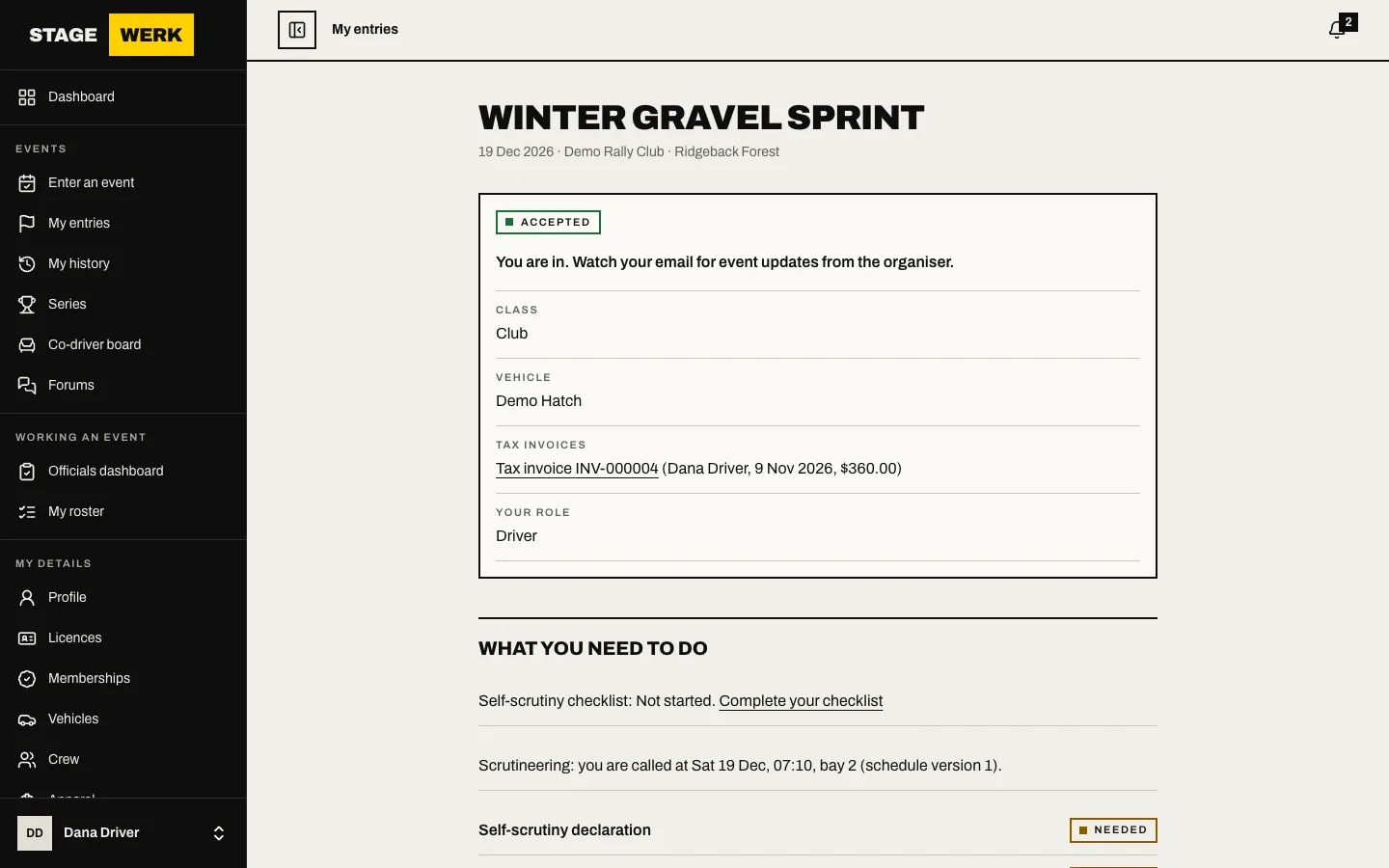
You must have chosen the car for the entry first. If something stops you, the page shows "You cannot continue yet" and says why, for example that you must choose the vehicle or that the entry can no longer be changed.
Answer each item
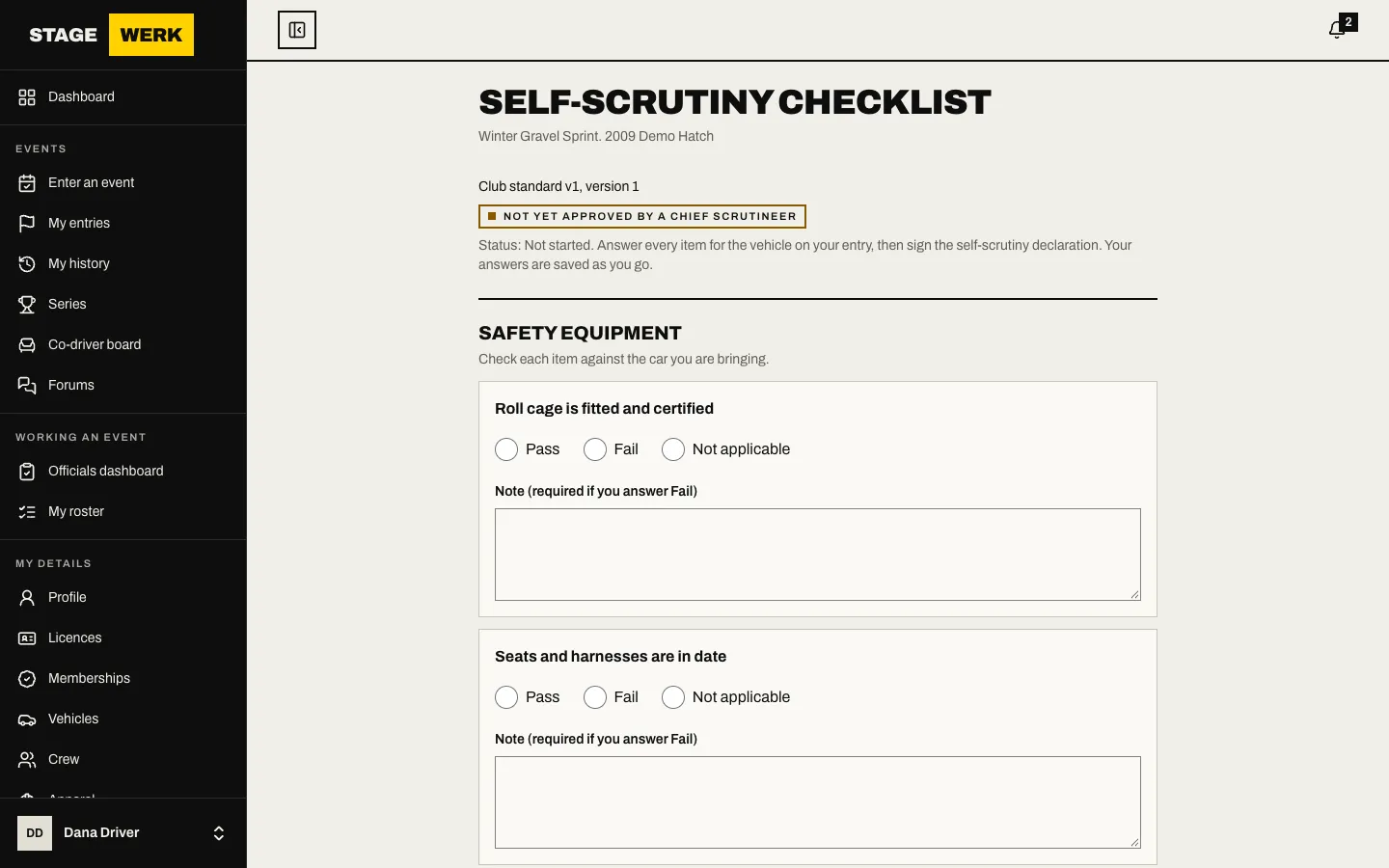
- The page is headed "Self-scrutiny checklist" and names your event and car. Work through each section.
- Answer every item. Depending on the item the choices are "Pass", "Fail", "Not applicable", "Yes" or "No". Add a "Note" where you want to explain.
- Read the guidance under an item if there is any.
- Choose "Save progress" any time. Your answers are saved so you can come back.
Finish
- Choose "Complete the checklist". It will not complete until every item is answered.
- The page shows "Completed". If any answer was a fail it adds "It has fails: tell the scrutineers at the event." A fail does not stop you entering.
- Choose "Next: sign the declaration" and sign it. See Sign your declarations.
Start again
If you made a mistake or changed car, and the entry can still be changed, choose "Start a new form". Your completed checklist is replaced and you must complete a new one and sign again.
At the event
The scrutineers can see your completed form. If the organiser has called your car, your entry also shows the time and bay.
https://develop.stagewerk.com/help