Enter stage times and penalties, or import results
Results start as stage times. You can type them in one at a time or import a CSV file. Stewards, event secretaries and owners can enter times. Other members can look but not change anything.
Enter times by hand
- Open the event and choose "Results". The page is headed "Stage times".
- If the event has no stages, the page says "This event has no stage runs yet. Add stages to the itinerary first." Add them first. See Itinerary and start settings.
- Pick the run in "Stage run". Entries are listed in start order.
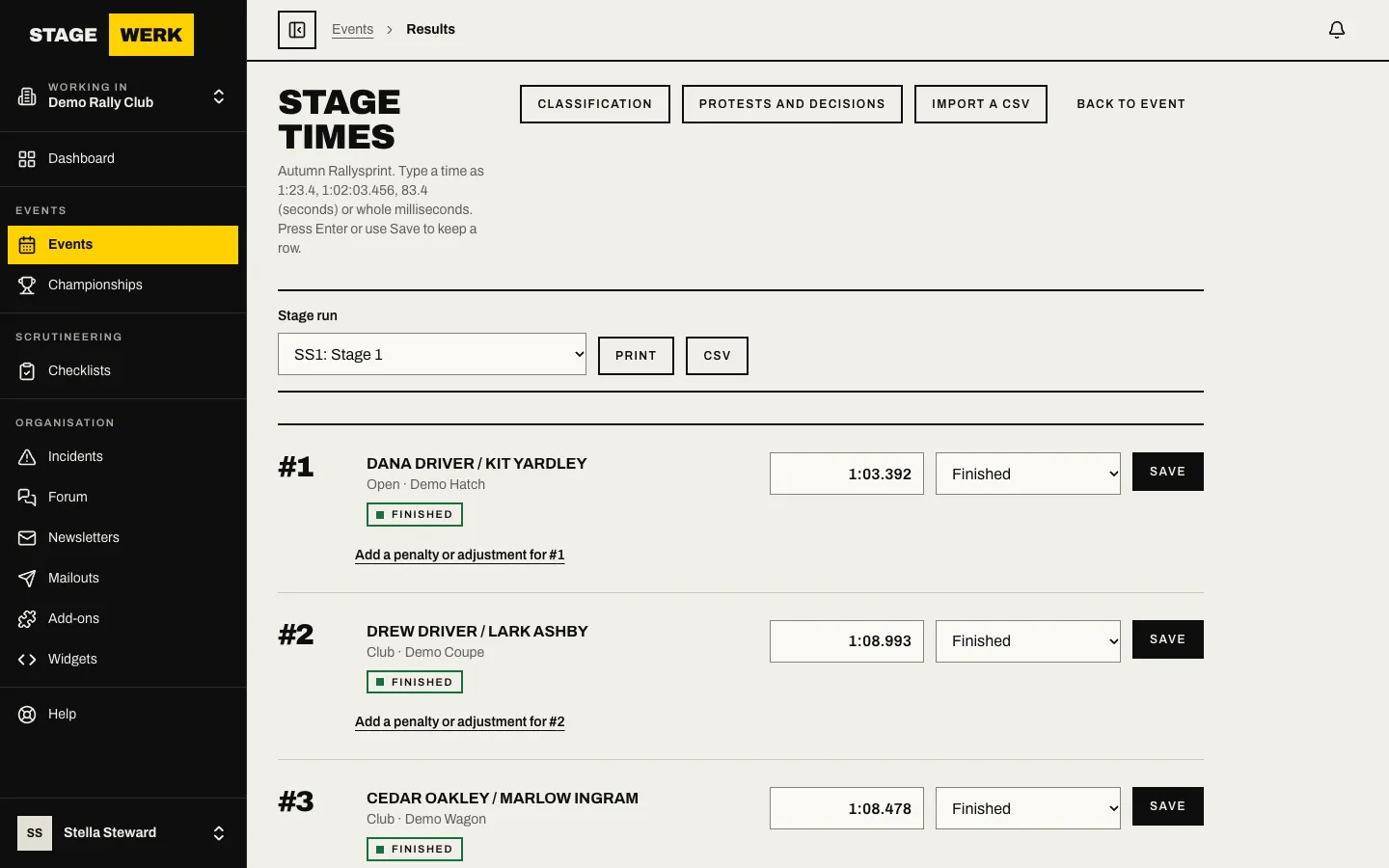
- Type each time in the row. Accepted forms are 1:23.4, 1:02:03.456, 83.4 (seconds) or whole milliseconds.
- If the competitor did not run a normal time, choose their status instead of "Automatic": Finished, Did not start, Did not finish, Disqualified on stage or No time recorded. A status other than Finished cannot have a time.
- Press Enter or choose "Save" on the row. Each row saves on its own.
Choose "Print" for a printable sheet of the stage's times.
Add a penalty or adjustment
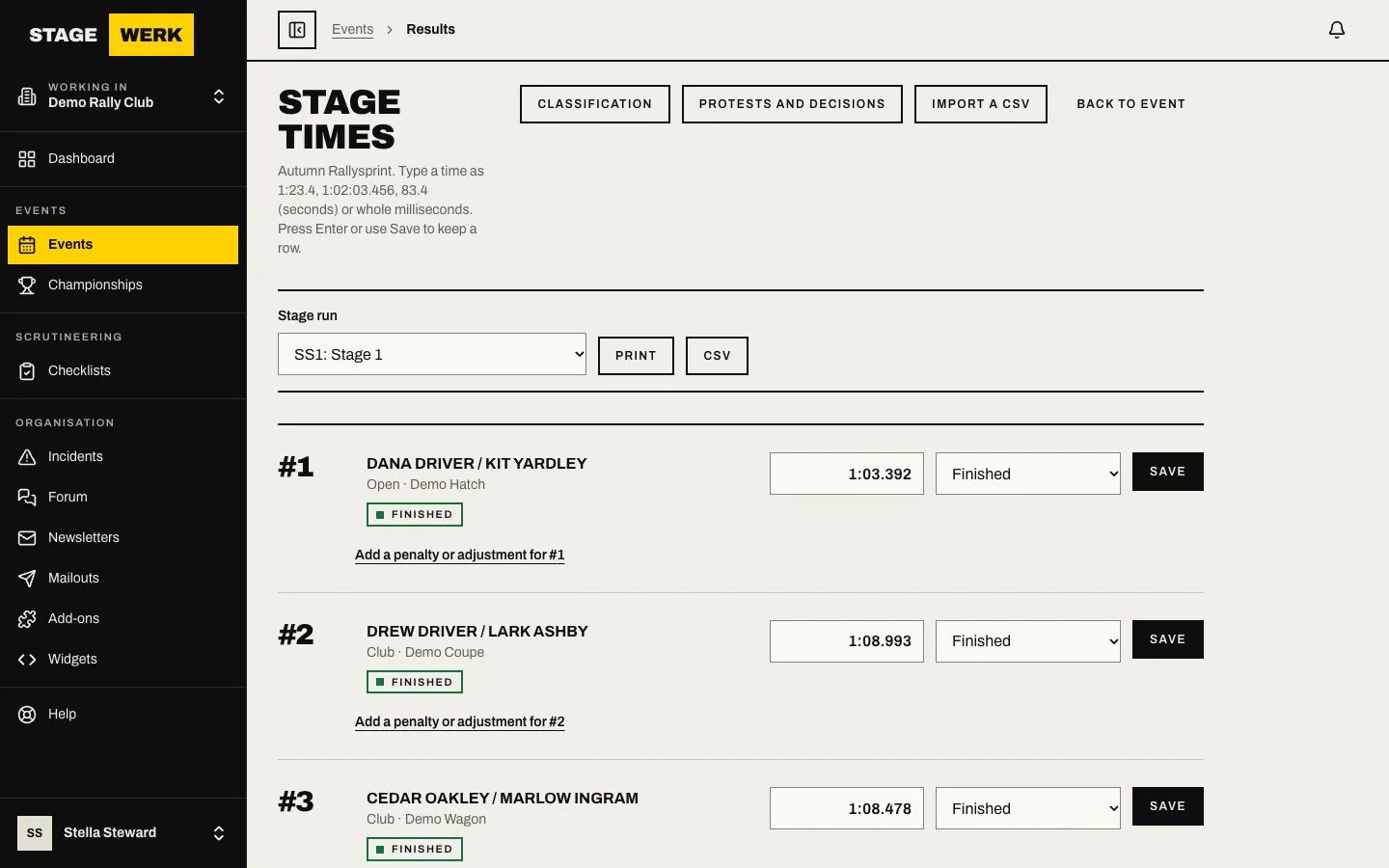
- Under the entry's row, open "Add a penalty or adjustment for" that car number.
- Choose the "Kind": Penalty or Adjustment.
- Enter the "Amount (m:ss.mmm; adjustments may start with -)". A minus sign takes time off.
- Pick the "Stage run" it applies to, or "Whole event".
- Give the "Reason" and save.
Use "Edit" on an existing line to change it, or "Remove" to delete it. Every change shows in the live classification straight away, but nothing is public until you publish. See Publish results and the final classification.
Import a CSV file
Importing suits timing systems that export a file. Choose "Import results from a CSV" from the Results page. The page tells you "Step 1 checks the file and writes nothing. Step 2 imports it."
- Under "Check a file" choose your file ("CSV file (UTF-8, comma or semicolon, up to 2 MB)").
- The file needs a column for the car number, the stage and the time. Optional columns are heat or run, status, penalty and penalty reason. Common header names such as "no", "car", "ss" or "elapsed" are matched for you. If a column is matched wrongly, change it in the mapping fields; the required ones are marked "(required)".
- Read the result of the check. Rows with problems are listed under "Problems" with their row numbers. Fix the file and choose it again until the check is clean.
- Under "Import" choose the button that reads "Import" followed by the number of rows. Times that already exist are replaced; the history records how many rows were new, replaced and unchanged.
Undo an import
"Earlier imports" lists each import with its counts. Choose "Undo" on one to restore what it replaced and remove what it added. Imports you undo are marked "(undone)".
Importing needs the results permission; other members can read the history.
Next
If a competitor disputes a time, see Run protests and publish decisions.
https://develop.stagewerk.com/help