Organisers
Run protests and publish decisions
Take protests lodged online or on paper, record fees and hearings, publish numbered stewards' decisions and note appeals.
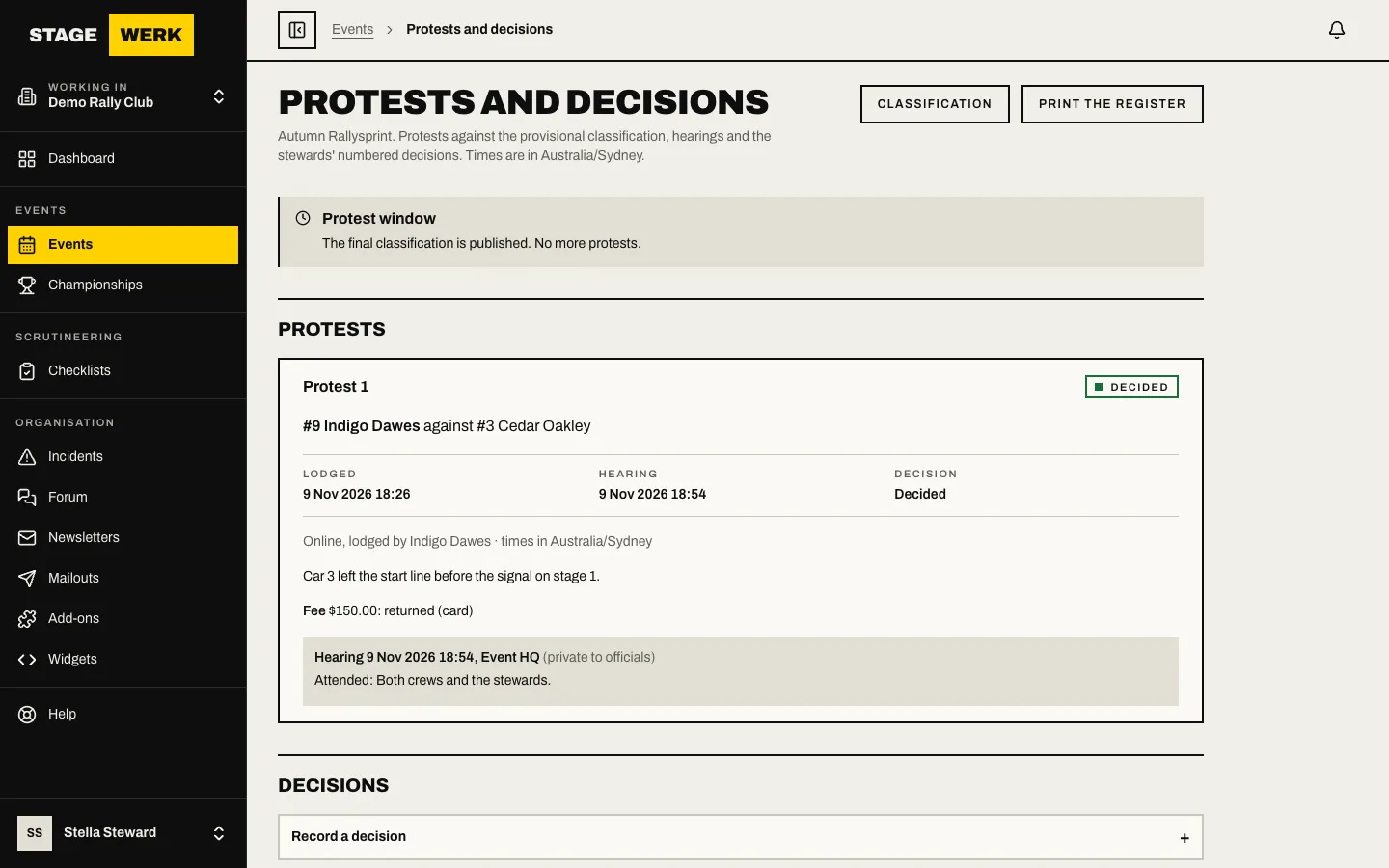
Protests are made against the provisional classification while its protest window is open. Competitors can lodge them online from their entry page, or you can record one handed in on paper. Stewards and owners record hearings and publish decisions. Event secretaries can see the page but a steward publishes.
Open the page
- Open the event and choose "Results", then "Protests and decisions".
- The "Protest window" notice says whether protests can still be lodged. The window length is set on the classification page. See Publish results and the final classification.
Settings
Under "Settings":
- Tick "Protests can be lodged online from the entry page" if you want online protests. Leave it off to take them on paper only.
- Choose "Who may lodge": the driver, the co-driver and the entrant's managers.
- "Protest fee shown to competitors, in cents" is information only. The fee is paid to the secretary and nothing is collected on the site. Use 0 for none.
- Edit the "Right-of-appeal wording on decision documents" if your sanctioning body requires specific words.
- Choose "Save settings".
Record a protest handed in on paper
- Under "Record a protest handed in on paper" choose "Open the form".
- Pick the "Protester (entry)" and what it concerns ("Concerns"). It can concern another entry, the protester's own result or an earlier decision. Fill "Entry protested against" or "Decision protested" to match.
- Write the "Grounds" and the time handed in. If it is late, a steward gives a "Reason a steward accepts it late".
- Choose "Record protest".
Protests lodged online appear in the same list.
Work a protest
Each protest is a card that shows three steps: "Lodged", "Hearing" and "Decision".
- Fee. If the event has a protest fee the card shows its state. When it is outstanding, choose how it was received in "Fee received by" (Cash, Transfer or Waived) and choose "Record fee". After the decision, record whether the fee was returned or kept.
- Hearing. Open "Record the hearing" and give when and where it was held, who attended and a summary of the evidence heard. Choose "Mark as heard". Use "Correct the hearing" later if needed.
- Withdrawal. If the protester pulls out, open "Withdraw this protest" and choose "Confirm withdrawal".
Publish a decision
A decision is a numbered document that names its outcome. You save it as a draft, then publish it.
- Open "Record a decision".
- Choose the "Protest answered", or "No protest" for a decision of the stewards' own. If this corrects an earlier decision choose it in "Supersedes an earlier decision".
- Give a "Title", a "Finding" and the "Reasons".
- "Outcome to apply to the results" lets the decision change the results, for example by adding a penalty to an entry. Pick the entry, stage run, kind and amount that apply.
- Choose "Protest fee" returned or kept, and list the "Stewards".
- Choose "Save as a draft". Drafts show as "Not published" and can be changed with "Edit the draft".
- Choose "Publish this decision", then "Confirm and publish". Publishing gives the decision its number and emails the protester and the crews it names.
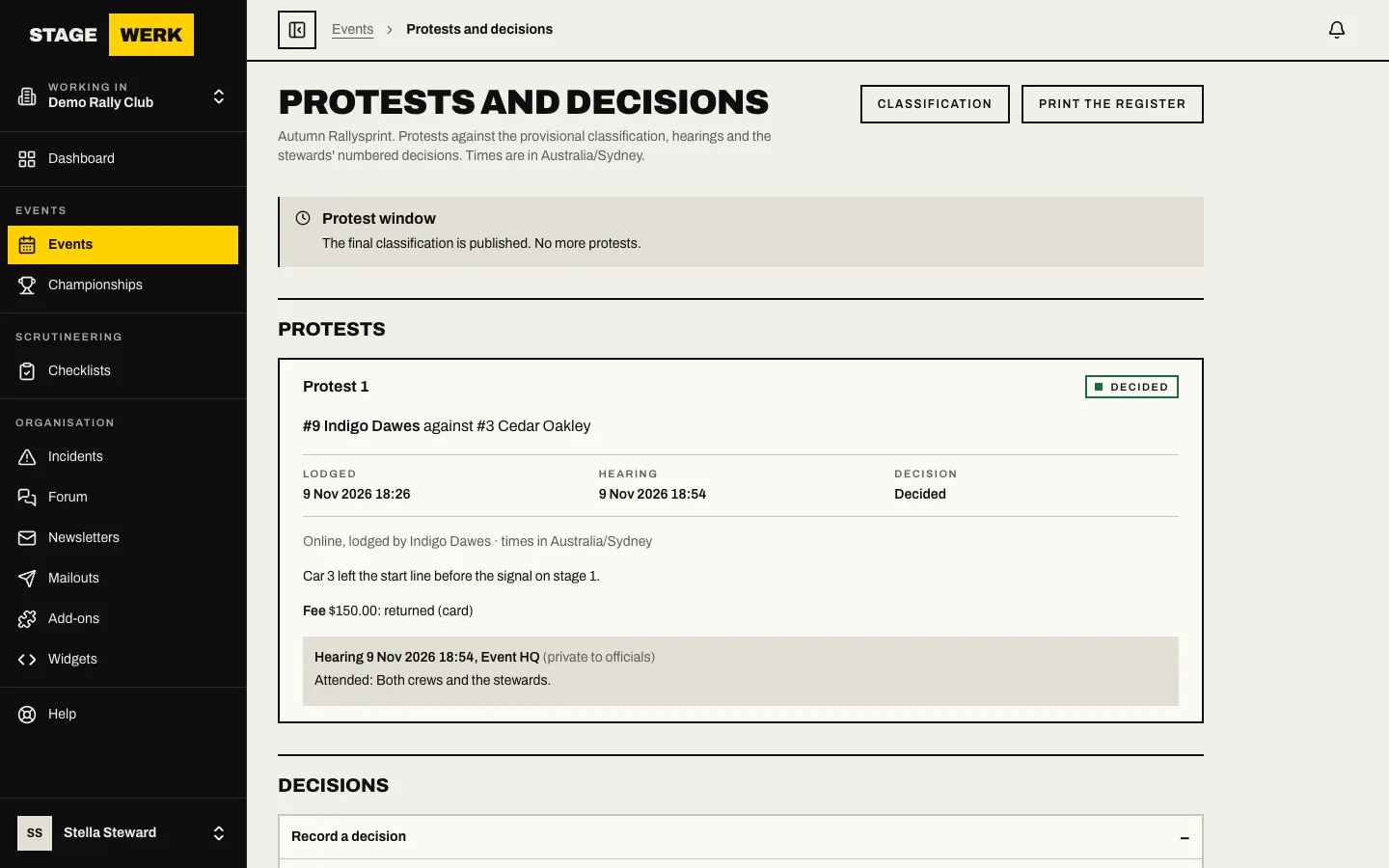
A published decision cannot be edited. To correct it, choose "Supersede with a new decision". Choose "Open the document" to see the printable decision. "Print the register" prints every protest and decision.
Note an appeal
On a published decision open "Note an appeal". Say who lodged it ("Lodged by"), when, and "To which body". Choose "Note the appeal". When the body answers, open "Record the result", choose "Dismissed" or "Upheld", add a "Note" and choose "Save result".
An open appeal is flagged when you sign off the final classification.
Related
Competitors lodge online as described in Lodge a protest.