Organisers
Build the officials roster and send briefings
Create positions, assign people, send the roster, check people in on the day and send the officials' briefing.
The roster is the list of positions at an event (clerk of course, stage commander, marshals and so on) and who fills them. People you assign get an offer by email and answer it. See Answer roster offers and check in for what they see. Owners and event secretaries can edit the roster; other members can read it.
Open the roster
- Open the event and choose "More pages", then the roster, or open the event's roster from the event page. The page is headed "Officials roster".
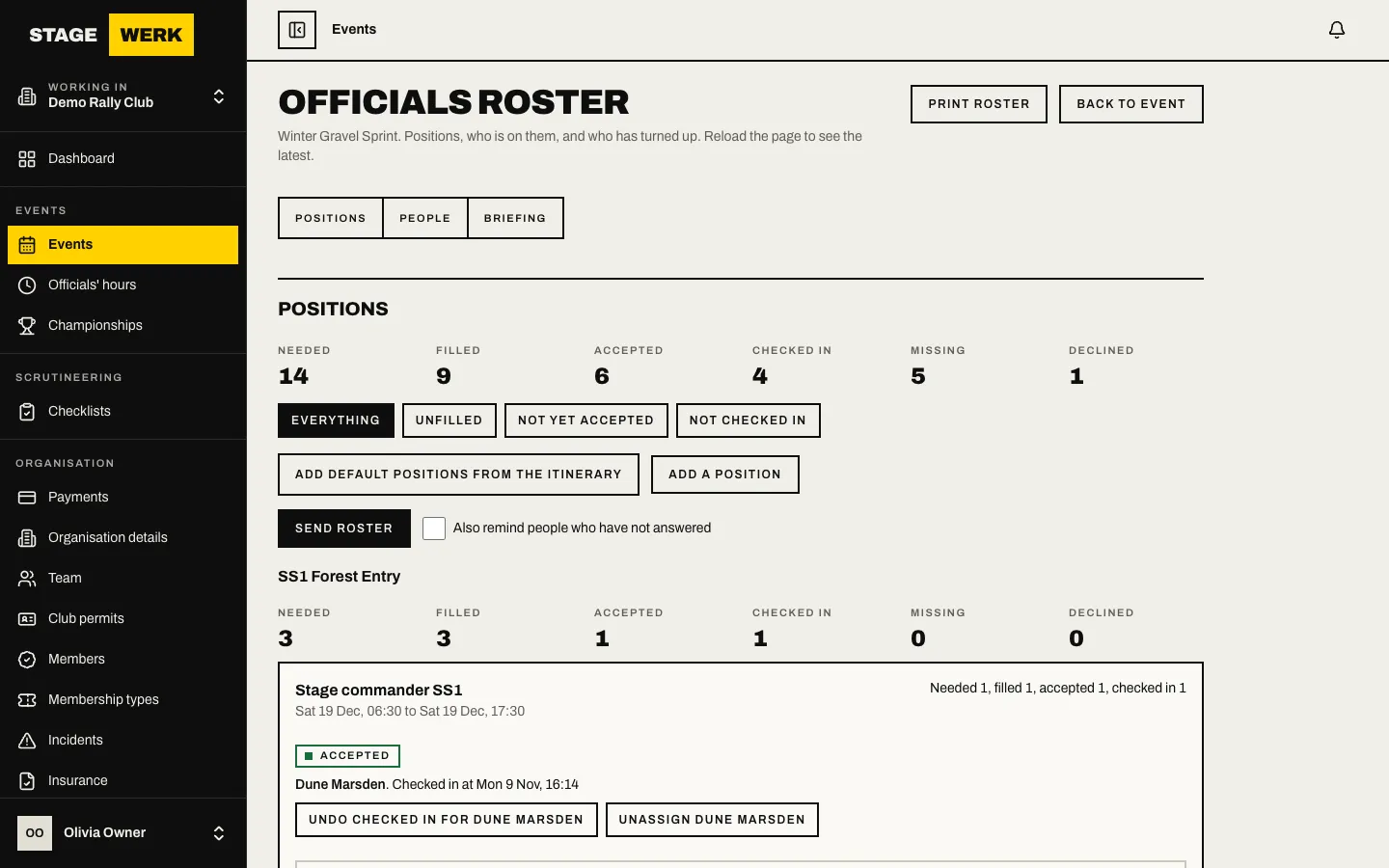
- "Positions" lists the positions, with "People" below. Use the filter buttons "Everything", "Unfilled", "Not yet accepted" and "Not checked in" to find gaps.
Add positions
- Choose "Add default positions from the itinerary" to create the usual positions for each stage or control in the itinerary. See Itinerary and start settings.
- For anything else choose "Add a position". Pick the "Role", the "Stage or control" or a free-text "Place (free text)", "People needed", the "Report time" and "Stand-down time", and any "Notes for the person". "Required accreditation grade (optional)" makes the page warn when someone assigned does not meet it.
- Use "Edit" on a position to change it.
Assign people
- On a position open "Assign someone to" that position.
- In "Who" choose a volunteer who signed up for this event, a member of your organisation, or "Someone else (enter name and email)". For someone else give their name, email and an optional phone.
- Choose "Assign". If the person is already on an overlapping position, the form asks for a "Reason for allowing an overlap with another position (only if asked)". If the required grade is not met you can tick "Assign even if the required grade is not met".
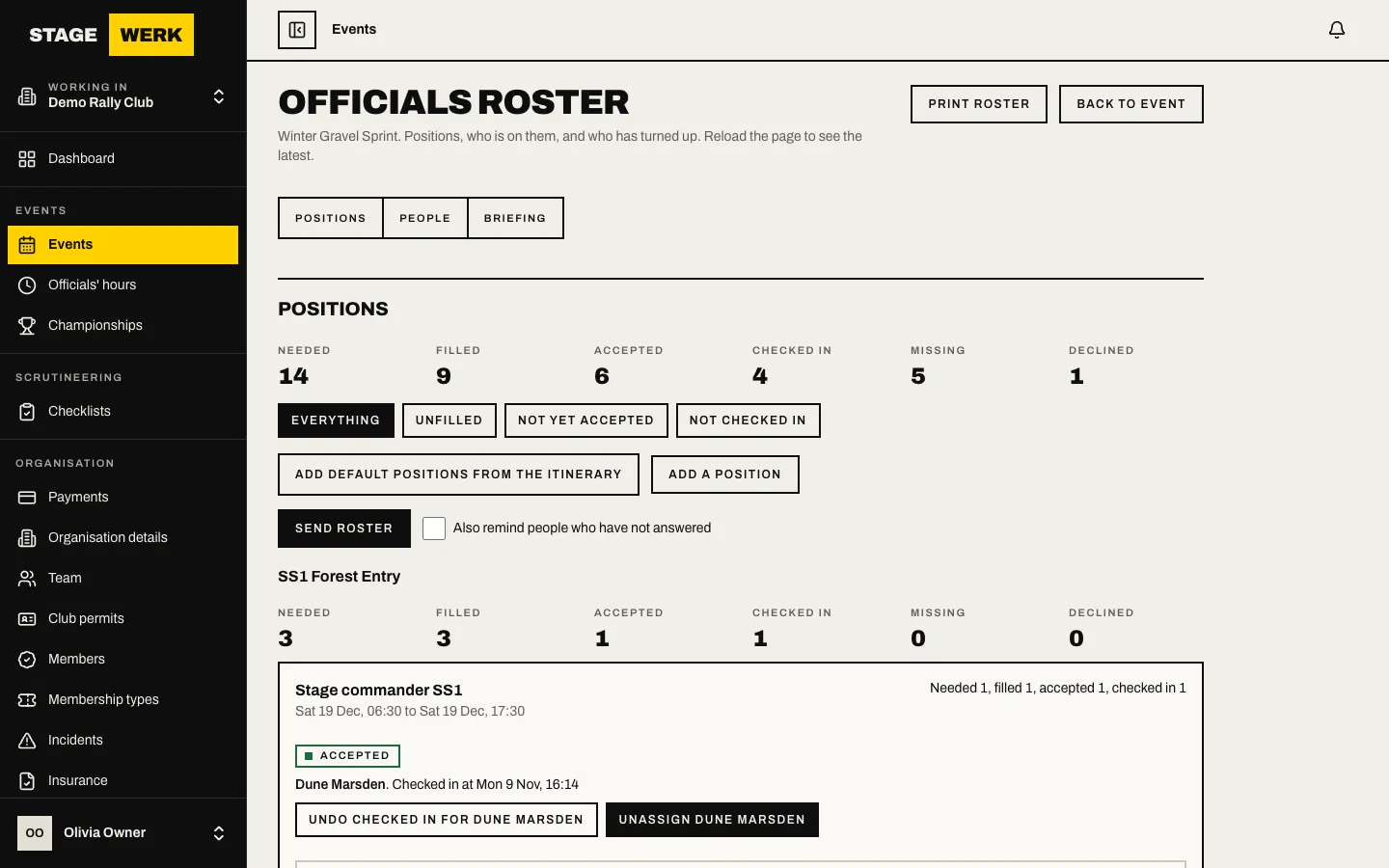
Assignments start as drafts. Nothing is sent yet.
Send the roster
- Choose "Send roster". Each person gets an email with their position and a link to accept or decline.
- Tick "Also remind people who have not answered" to resend to people who have not replied or whose position changed.
A person who declines shows as "Declined: this place is open again." and the position needs filling again. People can answer with the email link, with no account, or from their roster page when signed in.
Check people in on the day
Each person on a position shows their status. Choose "Check in" with their name when they arrive, or "No-show" if they do not. If you got it wrong, undo it with "Undo" and a "Reason for undoing". Phone numbers are only shown to people allowed to see them.
Choose "Print roster" for a printable roster, sign-on sheet, stage sheets and contact list.
Send a briefing
The briefing is one message for everyone on the roster, which each person must acknowledge.
- Under "Officials' briefing" write the "Briefing text (plain text)".
- Choose who gets it in "Send to roles (none ticked means everyone assigned)".
- Choose "Save briefing", then "Send briefing".
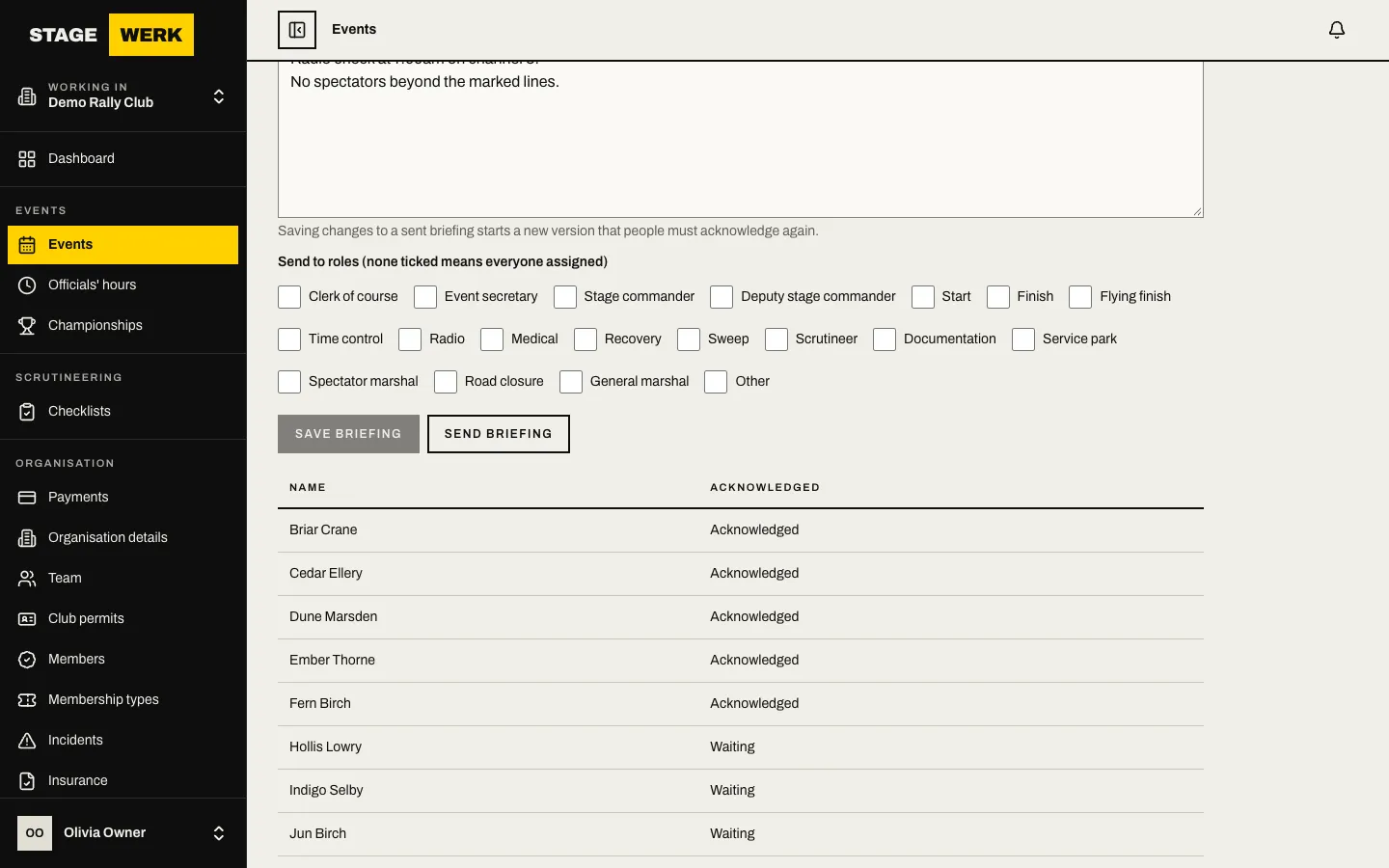
The page shows how many have acknowledged the latest version. Editing a briefing that has already been sent starts a new version, and people who were sent the old one are not counted as having read the new one until you send it.
After the event
Officials' hours are recorded against each assignment and summed in "Officials' hours" in the sidebar, which can be downloaded as a CSV for your sanctioning body.