Organisers
Set up scrutineering for an event
Choose or write a self-scrutiny checklist, publish a template version, pin it to an event, and plan the triage schedule.
Scrutineering has two halves. Before the event, competitors fill in a self-scrutiny checklist for their car. At the event, scrutineers inspect the cars you call. This guide covers the organiser's setup. For the day itself see Inspect cars at an event.
Understand templates and versions
A template is a checklist, such as a self-scrutiny checklist or a scrutineer's report form. A template has numbered versions. A published version never changes: you edit a draft and publish a new version. That keeps what competitors signed intact as evidence.
Stagewerk publishes platform templates you can look at and copy. A copy is yours to edit.
Get a template
- Open the organiser and choose "Checklists" in the sidebar. The page is headed "Checklist templates".
- Under "Platform templates" choose "View" to read one, then "Copy to my templates". Or under "Start a template from scratch" give a "Name", the "Form" (Self-scrutiny or Scrutineer's report), the "Sanctioning body" and "Surface", then choose "Create draft".
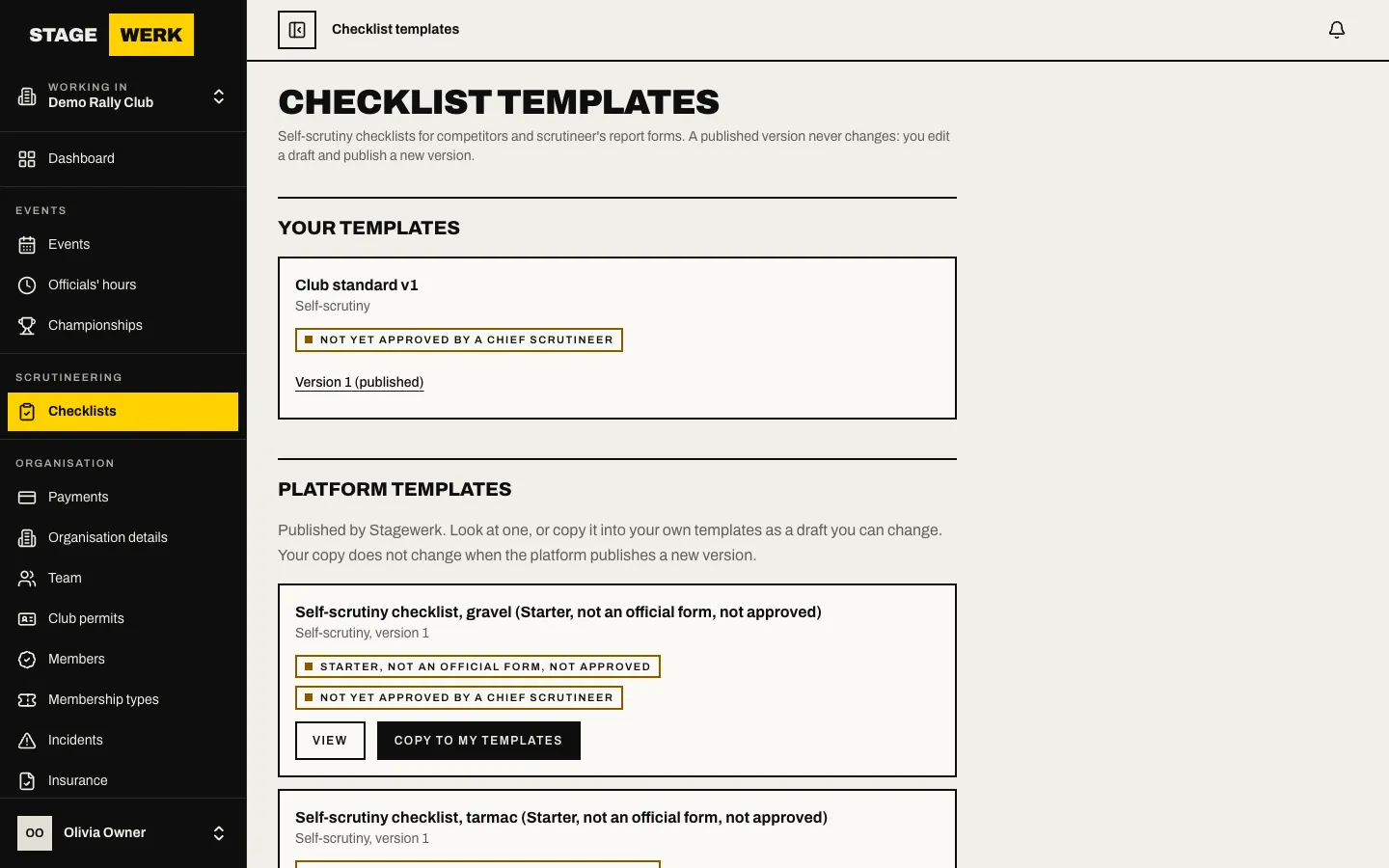
- Your copies appear under "Your templates".
Edit a draft and publish it
- Open your template. The page says "Draft: not yet published" for a draft.
- Under "Template details" check the "Name", "Sanctioning body", "Surface" and "Description (optional)".
- Each section has a "Title" and optional guidance, and a list of items. Use "Add a section" for more, and "Move section up", "Move section down" or "Remove section" to arrange them.
- Choose "Save draft".
- When it is right choose "Publish version" and the number, and confirm "Publish this version?". Once published it can never be changed.
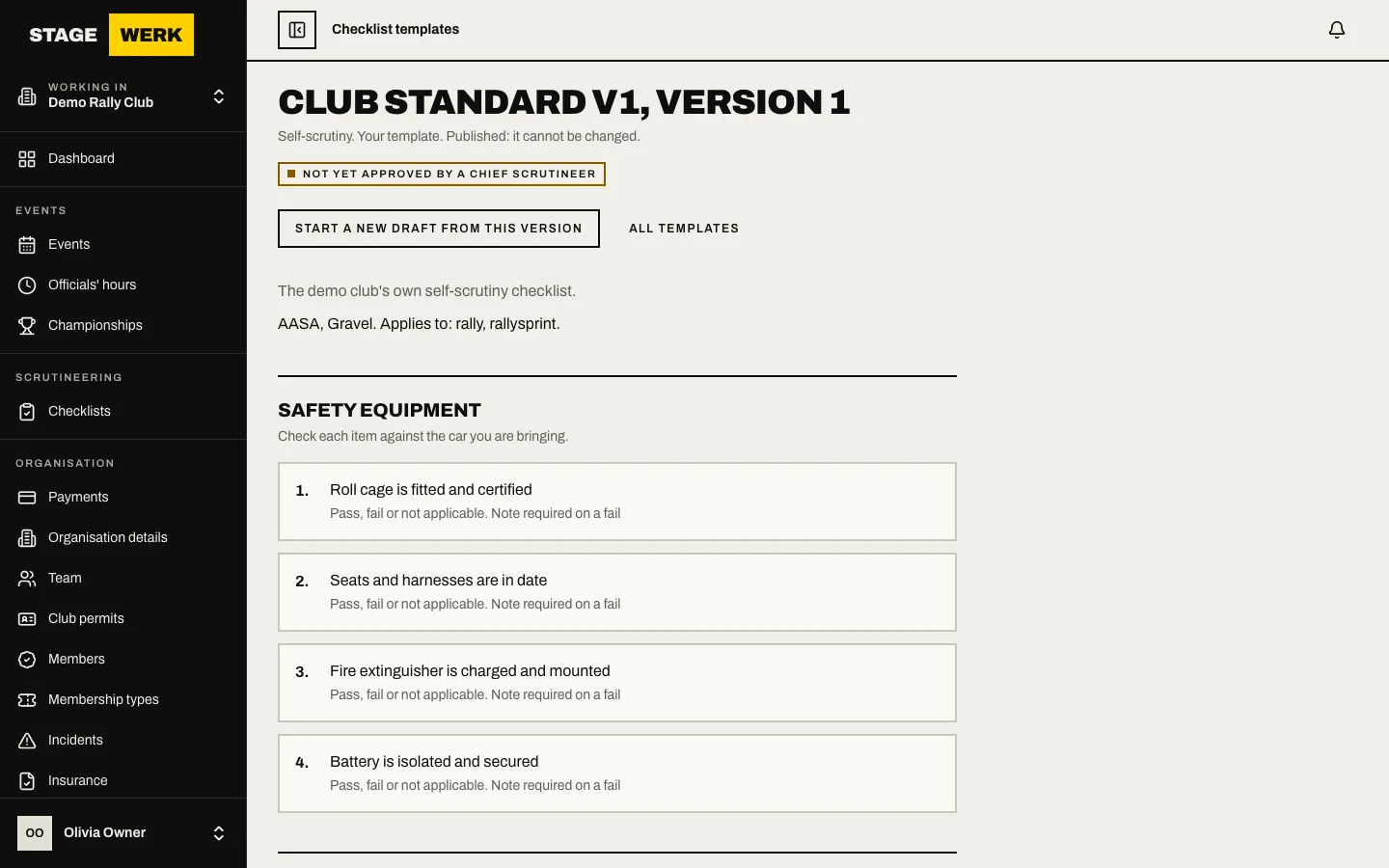
To change a published version choose "Start a new draft from this version".
If your sanctioning body approves a checklist, open "Approval" on the version and record who approved it: "Approved by (name)", "Role", "Date approved" and an optional "Note (optional)" and choose "Record approval". Competitors then see the approval beside the checklist.
Pin a checklist to an event
- Open the event and choose "Scrutineering" from its dashboard. The page is headed "Self-scrutiny checklist".
- Under "Which checklist this event uses" choose the "Surface" and then the "Checklist version". "No checklist" turns the checklist off, and competitors just sign the declaration.
- Choose "Save checklist choice".
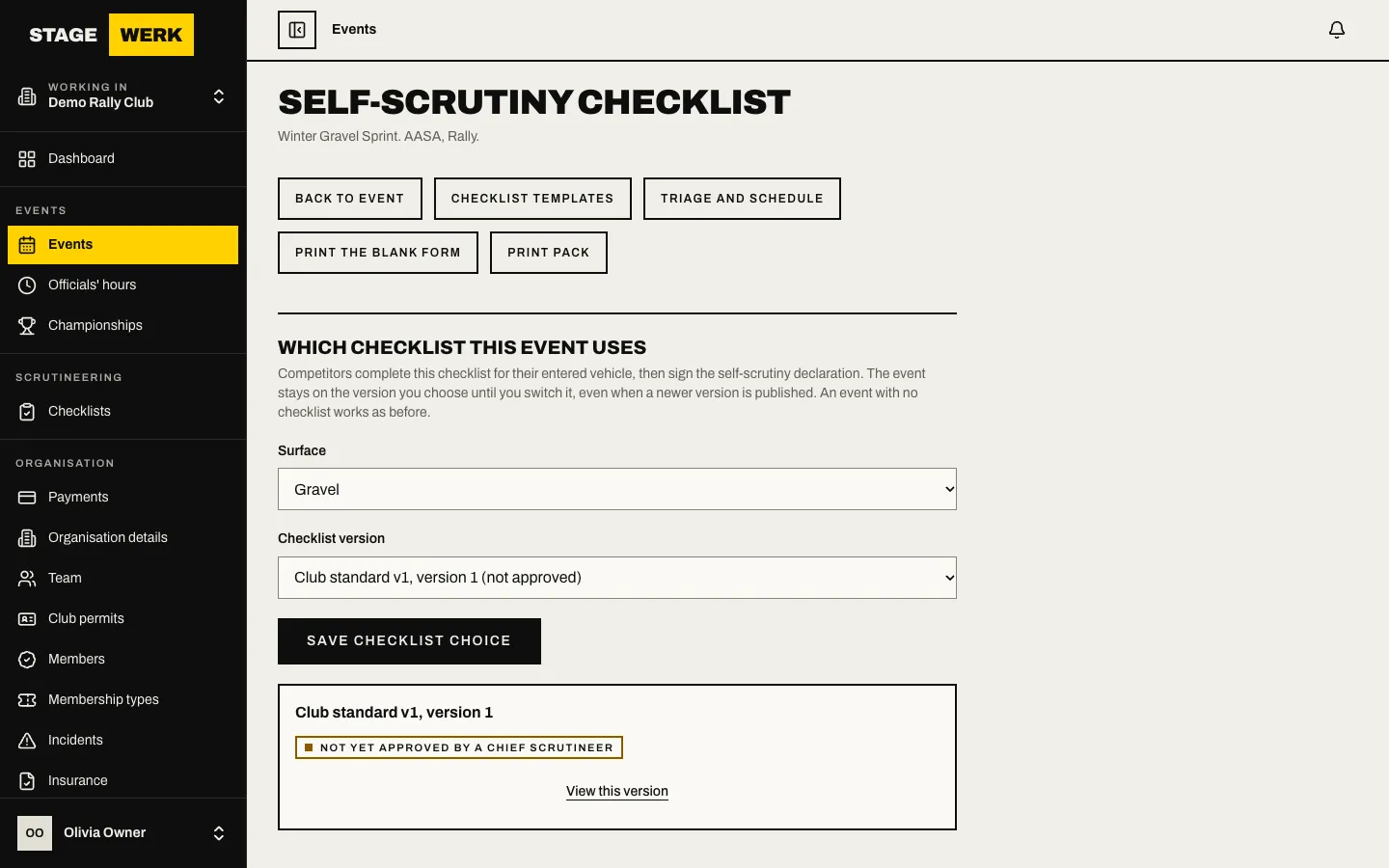
The event stays on the version you choose until you switch it, even if a newer one is published. If you switch after competitors have completed the old one, tick the box that confirms their completed forms stay on the old version as evidence and they must complete the new one and sign again.
"Where entries stand" shows how many entries have not started, are partly done or are complete. Under "Extra items for this event" use "Add an extra item" and "Save extra items" to add questions that apply only to this event. They show after the checklist's own items.
Choose "Print the blank form" for a paper copy.
Plan the triage schedule
From the same page choose "Triage and schedule". There you set how long since a car last passed, call cars in risk order, give times and bays, publish the schedule and print it. The steps are in Inspect cars at an event. A car that already shows a pass for the event is not called unless you flag it.